Shopify Integration
This article will cover how to install Coupon Monitor Javascript on your Shopify Store
Instructions
Step 1: Log in to your Shopify Account – Shopify Login
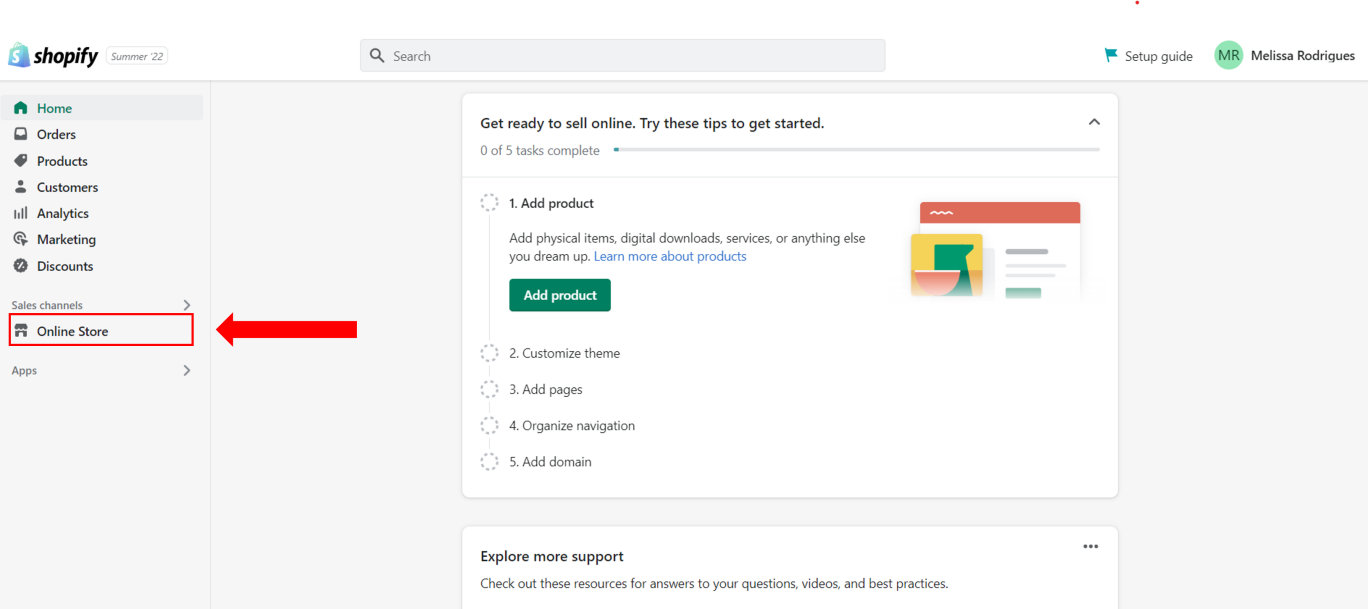
Step 2: Access the Online Store Section Under Sales Channels.
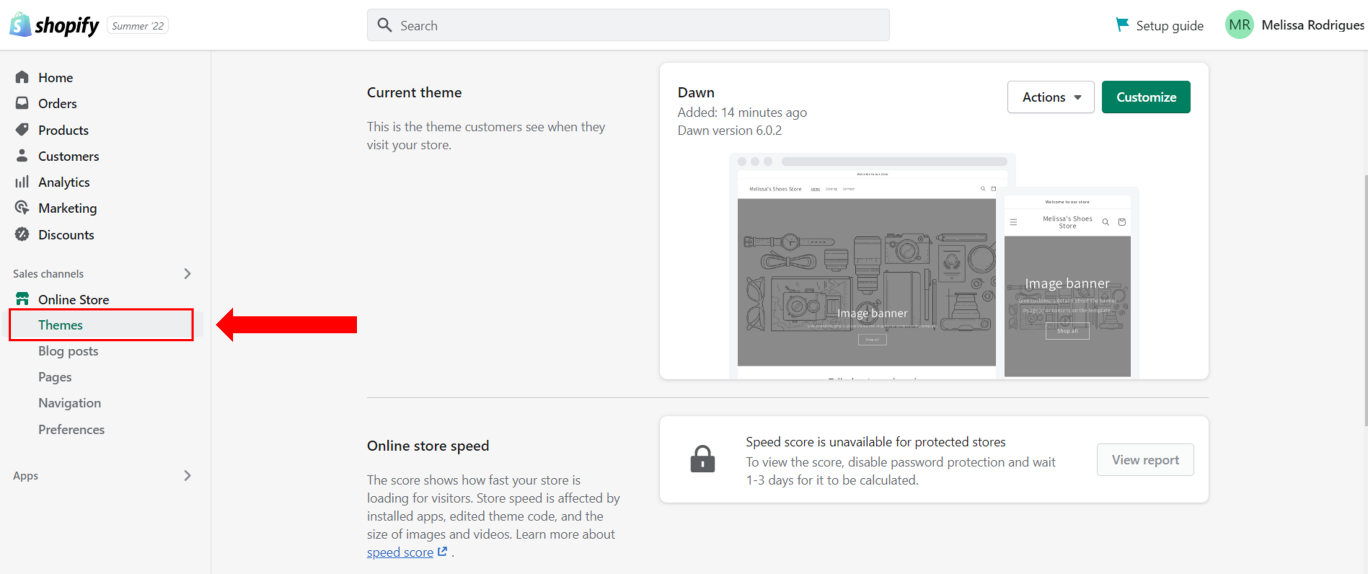
Step 3: Click on “Themes”
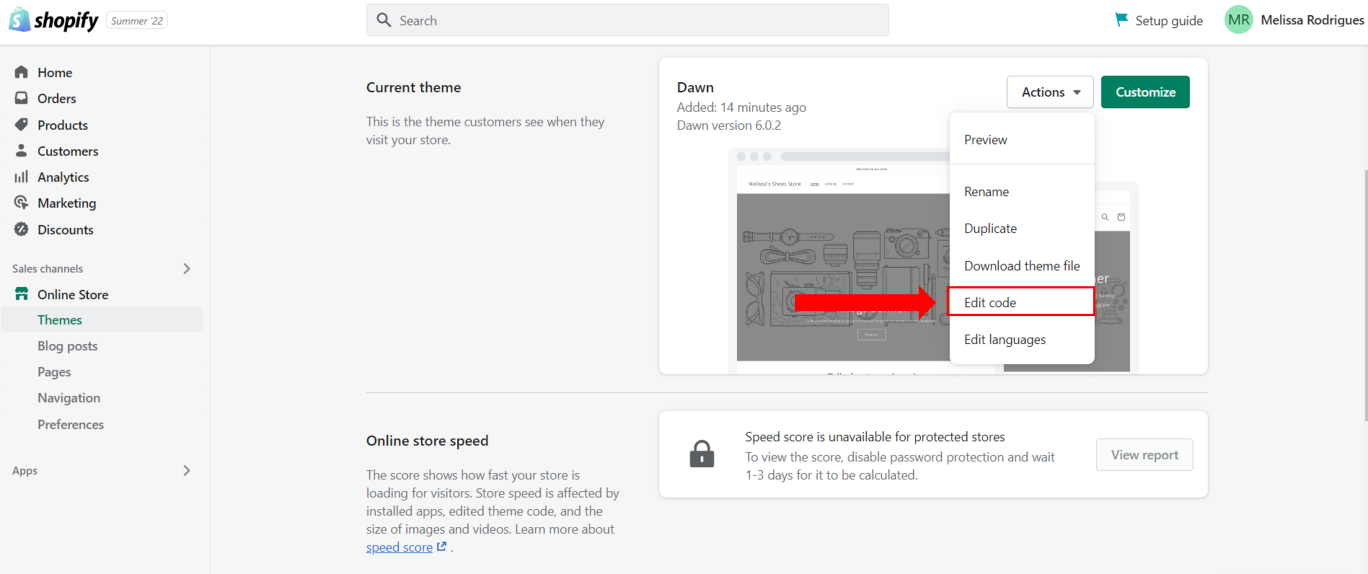
Once you’ve opened the themes sections, click on the “Edit Code” option under Actions found on your live template at the top right section
Step 4: Click on “{/} theme.liquid”
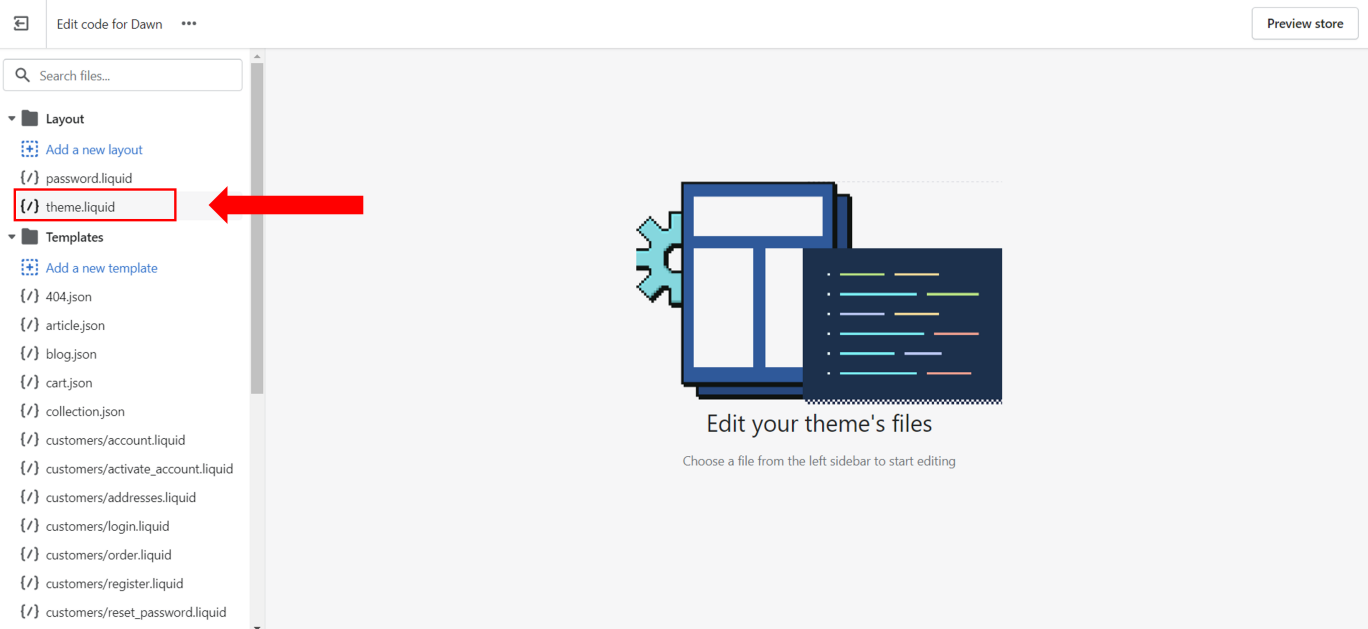
Click on the “Layout” folder to display a .liquid files list, now click on “{/} theme.liquid”, this will automatically generate a code file on the right side of the screen.
Step 5: Find the <Head> Section
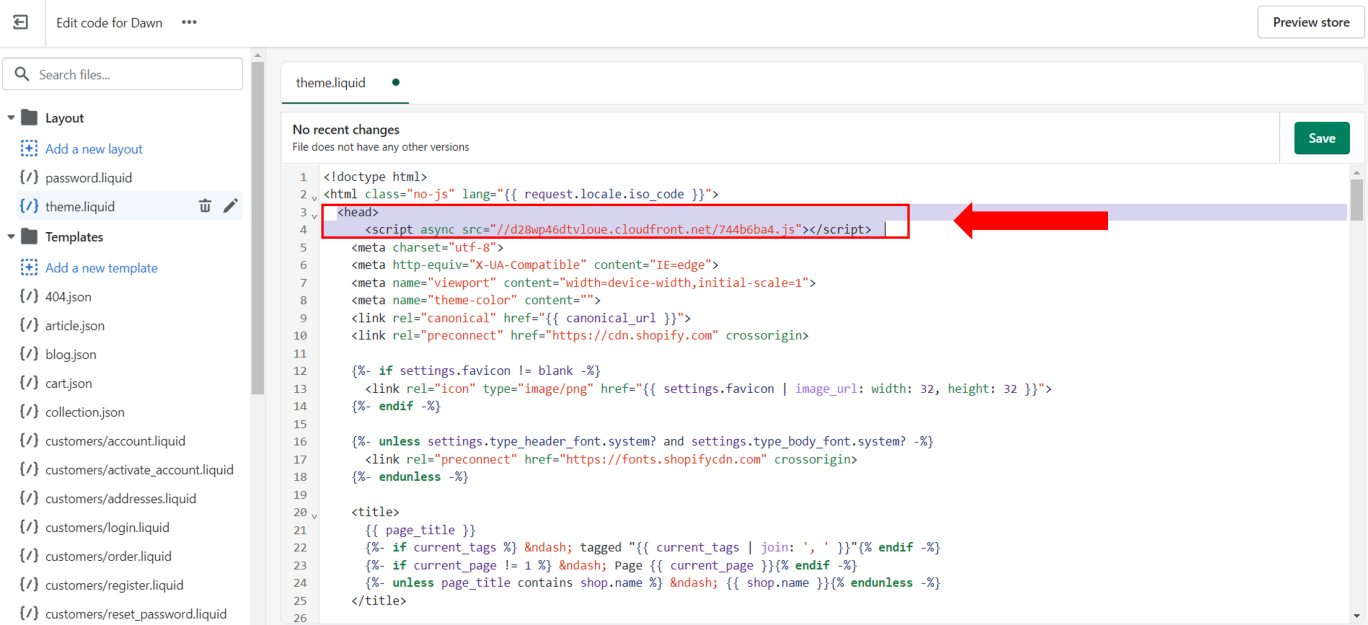
Copy the Coupon Monitor Script Code from the Welcome mailer and paste it under the <Head> Section as shown in the image above.
Step 6: Click on the “Save” button to save your changes
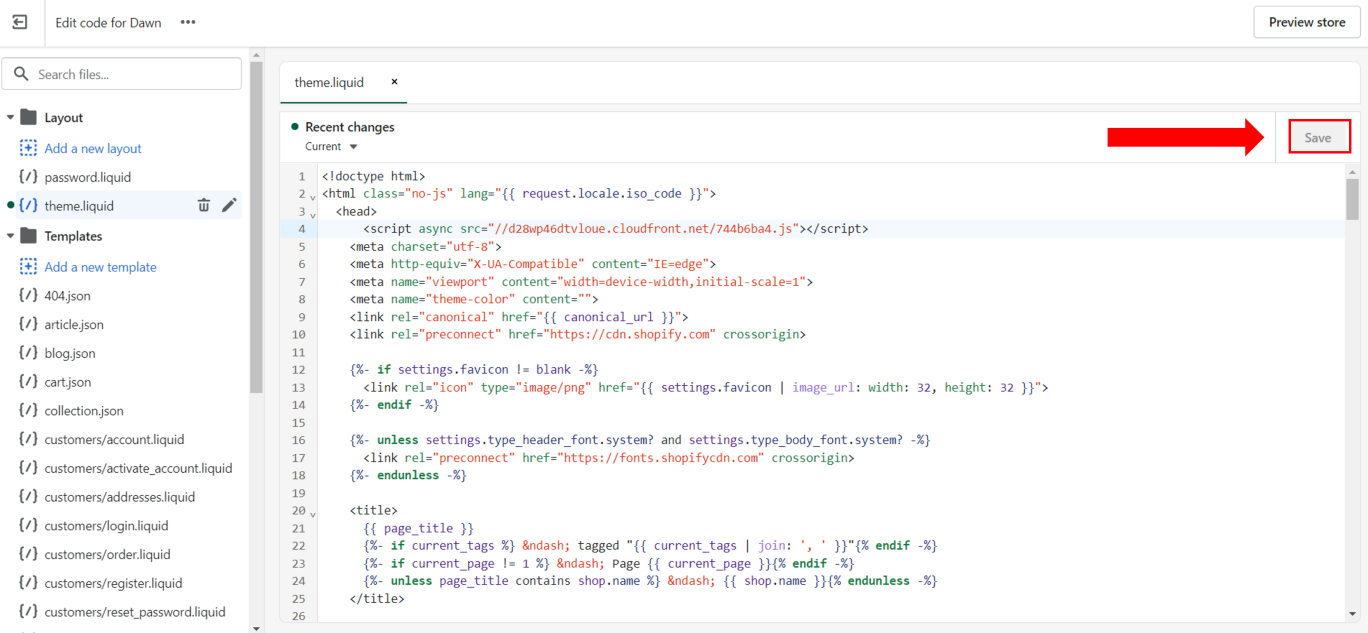
Please note that by default, Shopify does not allow third-party apps to embed scripts into the checkout page. Thus Coupon Monitor code is added to the success page after checkout has been completed.
Adding Coupon Monitor to your Shopify Plus Checkout Pages
To edit the checkout.liquid section of your website, to add in Coupon Monitor scripts to the checkout page refer to this Shopify Plus Documentation